iOS ASO: How to Optimize Your App Store Listing
A practical iOS ASO guide: what App Store search indexes, how to use the name, subtitle and keyword field, and how to turn page views into downloads.
What Is ASO on iOS?
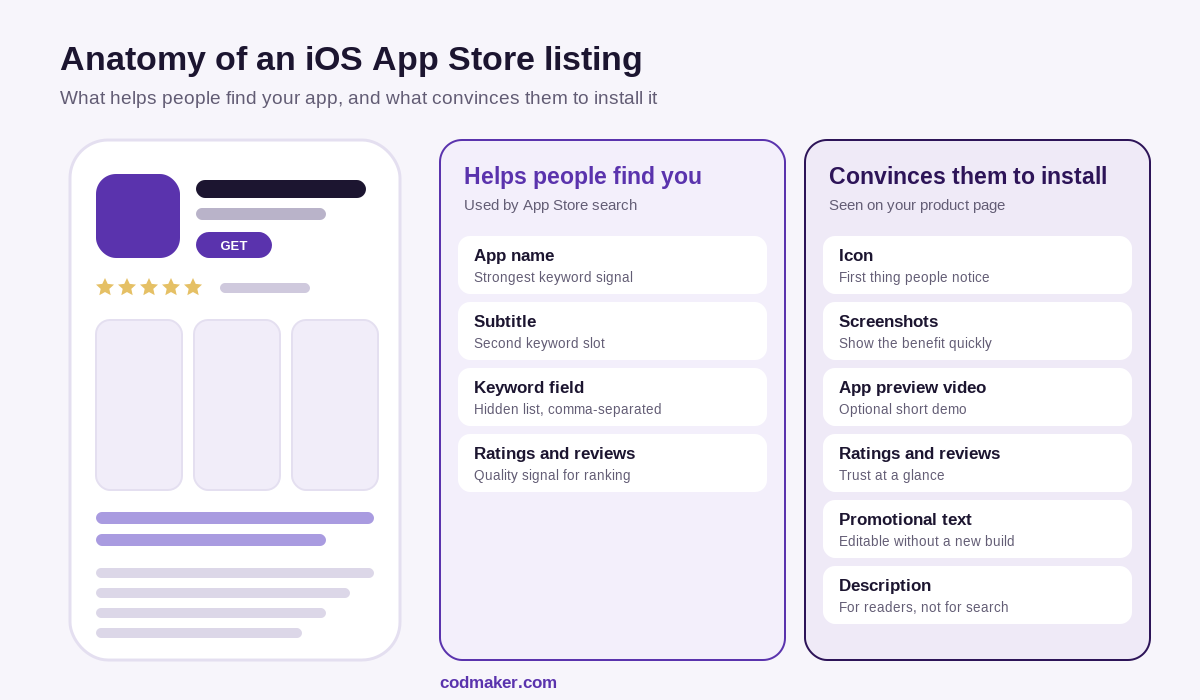
iOS ASO (App Store Optimization) is the work of making your app easier to find in App Store search and more convincing once people land on your page. It has two halves. Search metadata (app name, subtitle, keyword field) decides which searches you show up for. Creative assets (icon, screenshots, app preview video, ratings) decide whether people tap Get.
We have published most of our 22 products on the App Store, and we got this wrong first. As we wrote in our 17 products retrospective, we learned ASO by losing months of organic traffic to bad screenshots and weak keywords. This guide is the process we use now. We checked every limit against Apple's documentation in November 2026.
How Does App Store Search Ranking Work?
Apple describes two groups of signals. The first is text relevance: matches for your app's title, subtitle, keywords and primary category. The second is user behavior: downloads, ratings and reviews, and more. Apple does not publish the weights.
That gives you a clear split. The app name, subtitle, keyword field and category are indexed. Promotional text is not: Apple states it does not affect search ranking. The description is not on Apple's list of text relevance factors either, so write it for people.
Screenshots are a gray area. Since mid-2025, several ASO tools have reported that text inside screenshots appears to influence rankings. Apple has not confirmed this in its documentation. Write clear captions with the words your users search for, because that helps conversion anyway. Do not count on it for ranking.
| Field | Limit | Indexed for search? | Tip |
|---|---|---|---|
| App name | 30 characters | Yes | Brand plus your most important search term |
| Subtitle | 30 characters | Yes | A second set of terms, written as a readable phrase |
| Keyword field | 100 characters | Yes (hidden from users) | Commas, no spaces, no words repeated from name or subtitle |
| Promotional text | 170 characters | No (Apple says it does not affect ranking) | Editable any time without a new version, so use it for news |
| Description | 4,000 characters | Not listed by Apple as a search factor | Put the value in the first sentence, before the "more" cut |
| Screenshots | Up to 10 per localization | Not confirmed by Apple | The first one to three show in search results |
| App preview video | Up to 3, each up to 30 seconds | No | Autoplays muted, so it must work without sound |
| Icon | One per app (alternates can be tested) | No | Simple shape that reads at small sizes |
| Ratings and reviews | Prompt up to 3 times per 365 days | Influences ranking as a behavior signal | Ask after a success moment |
How Do You Do Keyword Research for iOS?
Start with a list, not a tool. Write down every phrase a person might type to find an app like yours. Think in tasks: "identify plant", "habit tracker". Then expand it.
Apple's own guidance is honest about the trade-off. Popular terms drive a lot of traffic but are highly competitive, especially for a newer or smaller app. Less common terms drive less traffic and are easier to rank for. A new app should lean toward specific, lower-competition phrases and earn the broad ones later.
- Type your seed terms into App Store search and note the autocomplete suggestions
- Read the names and subtitles of the top five apps for each term
- Run a small Apple Ads search campaign to see which terms bring real impressions and installs
- Keep a final list of 15 to 25 terms and rank them by priority
How Do You Write the App Name and Subtitle?
You get 30 characters for each. Both are indexed and both are visible in search results, so they must do two jobs: match searches and make sense to a human.
A pattern that works: brand name, a separator, then your top term. The subtitle then covers the next most valuable terms without repeating any word from the name.
Keep it readable. Apple's review guidelines say names and subtitles should not include prices, terms or descriptions that do not belong in that field, and a keyword-stuffed name can get rejected. A short readable phrase beats a comma list. You can change the name and subtitle only when you submit a new version, so plan them with your release.
How Do You Use the iOS Keyword Field Well?
The keyword field is 100 characters that users never see. It is your only pure search field, so every character counts. Apple's rules are specific.
Because each word only needs to appear once, the App Store can combine words across your name, subtitle and keyword field to match longer searches. Put single words in the field and let search build the phrases.
- Separate terms with commas and no spaces: write plant,flower,garden and not plant, flower, garden
- Do not repeat words that are already in your app name, subtitle or category
- Use the singular or the plural, not both. Apple treats "climb" and "climbs" as duplicates
- Skip generic words such as "app" and filler words such as "the" and "to"
- Never add competitor names, trademarks or irrelevant terms. Apple calls improper keywords a common reason for rejection
- Each localization has its own keyword field, which gives you extra space in each market
How Do the Icon and Screenshots Affect Conversion?
Ranking gets you seen. The icon and screenshots get you installed. In search results, people see your icon, name, subtitle, rating and up to three screenshots or an app preview. Most decide right there, without opening your page.
Keep the icon simple and recognizable. Apple's advice is to avoid unnecessary visual detail so it stays legible at every size.
You can upload up to 10 screenshots. Treat the first three as an ad. Each one should make one claim in a short caption with large text, then show the screen that proves it. For PlantDoc, that is a photo going in and a plant name coming out.
You can add up to three app preview videos of up to 30 seconds each. They use footage captured on the device and autoplay with the sound off, so the first few seconds must explain the app without audio.
How Do Ratings and Reviews Affect ASO?
Ratings do double duty. Apple says ratings and reviews can influence how your app ranks in search, and the star rating shows right next to your app in results.
Use the system rating prompt. Apple lets an app show it up to three times in a 365-day period, and the system decides whether it actually appears. In Expo, the expo-store-review module wraps this API. Because you get so few prompts, timing is everything. Ask right after a success moment: a plant identified, a streak reached, a task done. Never ask on first launch.
Reply to reviews in App Store Connect. The reviewer gets a notification and can update their review. A useful reply to a bug report, followed by a fix, is a cheap way to win a rating back.
Should You Localize Your App Store Listing?
Yes, in the markets that matter to you. Apple lets you localize the name, subtitle, keywords, description, screenshots and previews for each language. Each localization brings its own 30, 30 and 100 characters.
Translate the search terms, not just the sentences. A direct translation often misses the words people really type. We learned this with our Arabic and Islamic apps: discoverability in non-English categories needs native keyword knowledge that we did not have at first.
Start small. We once shipped German and Italian translations for a product with very few users in those languages, and it was wasted effort. Localize the listing for your top two markets first, then add more when the numbers justify it.
What Are Custom Product Pages, Product Page Optimization and In-App Events?
Custom Product Pages are extra versions of your page with different screenshots, promotional text and app previews. You can publish up to 70. Each one has its own URL for campaigns, and you can assign keywords so a page appears in search for those terms in place of your default page. They need review but not a new app version.
Product Page Optimization is Apple's A/B test. You test up to three treatments against your original page, with different icons, screenshots or previews. You run one test at a time, for up to 90 days, and you choose how much traffic sees the treatments. Apple recommends waiting for at least 90 percent confidence before you apply a winner. Testing an alternate icon requires the icon to ship inside your app binary.
In-App Events are cards for things happening inside your app: a challenge, a new feature, a seasonal event. They appear on your product page, in search results and on editorial tabs. You can publish up to 10 at a time and each can run for up to 31 days.
How Do You Measure ASO Results in App Store Connect?
Open App Analytics in App Store Connect. Four numbers tell you most of the story.
Change one thing at a time and write down the date. Give a metadata change a few weeks before you judge it. If you change the keyword field and the screenshots in one release, you will not know which one moved the number.
- Impressions: how many people saw your icon on the App Store
- Conversion rate: Apple defines it as total downloads divided by unique impressions
- Downloads by source type: App Store Search, App Store Browse, App Referrer and Web Referrer
- Retention: whether the people you attract keep using the app
What Is a Step-by-Step iOS ASO Checklist?
This is the order we follow for a new listing or a refresh.
- 1. List 15 to 25 search terms and rank them by relevance and competition
- 2. Put the top term in the app name with your brand, within 30 characters
- 3. Write a readable 30-character subtitle with the next terms and no repeats
- 4. Fill all 100 characters of the keyword field: commas, no spaces, single words, no duplicates
- 5. Design the first three screenshots as a sequence with large captions
- 6. Write the first sentence of the description for a person who has never heard of you
- 7. Add the rating prompt after a success moment
- 8. Localize the listing for your top two markets
- 9. Record a baseline in App Analytics, then run one Product Page Optimization test
- 10. Review keywords and screenshots with every release
What Are the Most Common iOS ASO Mistakes?
The biggest one is timing. We now do the listing work before the first submission, not after. Spend a week on the copy and the screenshots, and show them to three to five people from your target audience before you submit.
- Leaving keyword characters unused, or wasting them on spaces after commas
- Repeating the same word in the name, subtitle and keyword field
- Putting keywords in promotional text, which Apple says has no ranking effect
- Asking for a rating on first launch
- Translating the description but not the keywords
- Changing everything at once, so no result can be traced to a cause
Frequently Asked Questions
What does ASO mean for iOS apps?
ASO stands for App Store Optimization. On iOS it means choosing the name, subtitle and keywords so your app appears for the right searches, and improving the icon, screenshots and ratings so more of those people install it.
Does the app description affect App Store search ranking?
Apple lists the title, subtitle, keywords and primary category as the text factors for search, and the description is not among them. Write the description to persuade readers. Google Play is different and does use the description for search.
How long is the iOS keyword field?
It is limited to 100 characters in total. Separate terms with commas and no spaces, and do not repeat words from your app name or subtitle. Each localization has its own field.
How often should you update your App Store keywords?
Review them with each release, since the name, subtitle and keyword field change only when you submit a new version. Give each change a few weeks of data before you judge it. Replace terms that bring no impressions.
How many screenshots can you upload to the App Store?
You can feature up to 10 screenshots on your product page, plus up to three app preview videos of up to 30 seconds each. The first one to three screenshots can appear in search results, so they deserve the most work.
Keep reading
All guides →
How to Create a Mobile App: 9 Steps from Idea to Launch
How to create a mobile app in 9 steps: define the problem, pick features, design, choose a stack, build, test on real devices and submit to the stores.
Mobile App Lifecycle: 7 Stages from Idea to Retirement
The mobile app lifecycle in 7 stages: validation, design, development, testing, launch, growth and retirement. What to do and what to avoid in each.
App Store vs Google Play: Key Differences for Developers
App Store vs Google Play compared for developers: account fees, review, testing, store listing rules, commission and which store to launch on first.