n8n AI Agent Tutorial: Build Your First Agent
Build your first n8n AI agent step by step: Chat Trigger, AI Agent node, chat model, memory and tools. Plus the limits and mistakes to know before you ship.
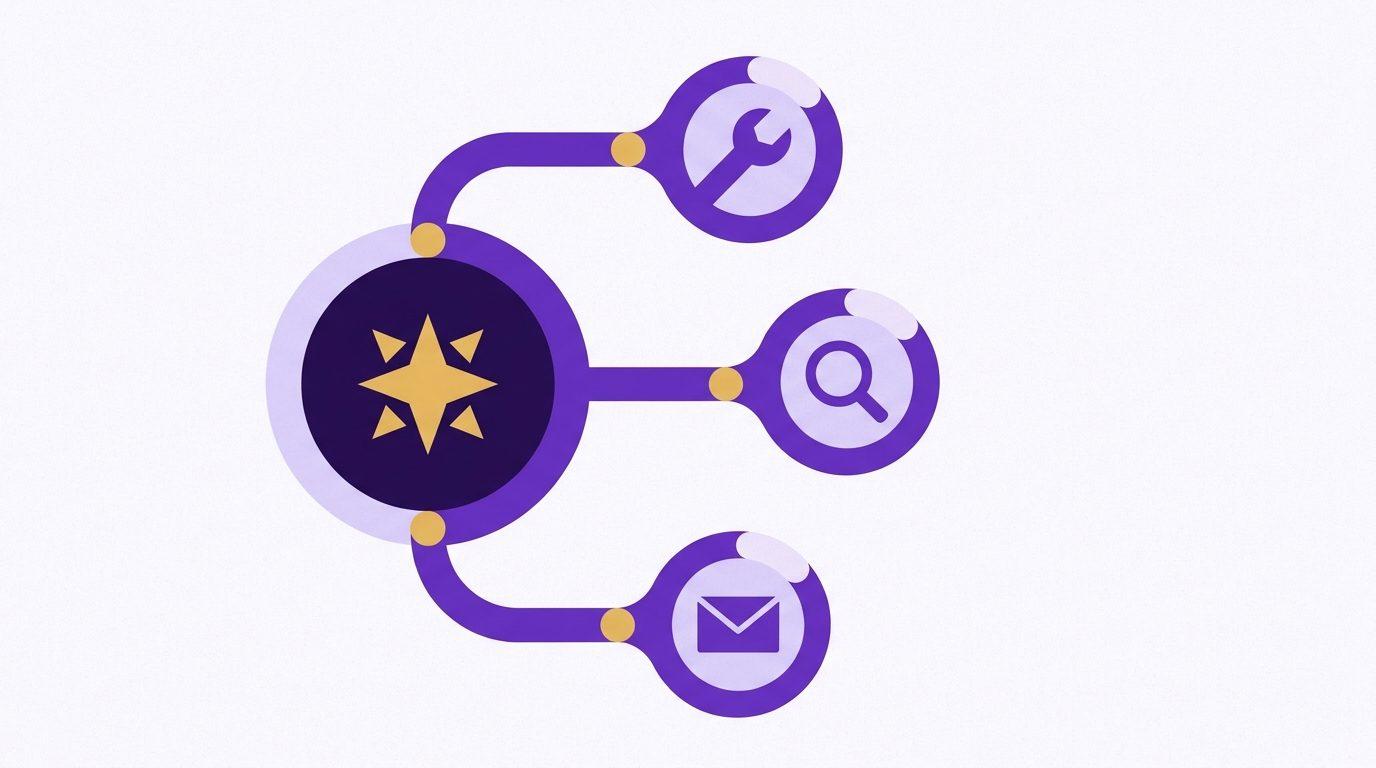
What Is an n8n AI Agent?
An n8n AI agent is a workflow built around the AI Agent node. You connect a chat model and one or more tools, and the model decides which tools to call to finish a task. Add a memory sub-node and it can hold a multi-turn conversation.
The difference from a normal workflow is who picks the path. In a normal workflow you wire every branch. In an agent, the model reads the request, chooses a tool, looks at the result and decides what to do next. It loops until it has an answer or hits its iteration limit.
This tutorial builds a small support assistant. It answers questions in a chat window, remembers the conversation and can look up an order through an API. The pattern carries over to any agent you build later.
What Do You Need to Build an AI Agent in n8n?
You need a running n8n instance and an API key for a model provider. That is all. No extra packages and no separate vector database for this first build.
n8n Cloud works. So does a self-hosted instance. If you want your own, our Docker guide is linked at the bottom.
- An n8n instance, cloud or self-hosted
- An API key for a chat model provider such as OpenAI, Anthropic, Google, Mistral or Groq, or a local model through Ollama
- One API you want the agent to call. Any REST endpoint works for practice
- Fifteen to thirty minutes
How Does the n8n AI Agent Node Work?
The AI Agent node is a root node. It does nothing useful alone. You plug sub-nodes into the connectors along its bottom edge, and each connector accepts one kind of sub-node.
Sub-nodes do not run by themselves and they do not sit in the main left-to-right flow. The agent calls them when it needs them. That is why they hang below the agent on the canvas instead of beside it.
Older n8n versions offered several agent types in a dropdown. Current versions work as a tools agent: the model uses its native tool-calling ability. Pick a chat model that supports tool calling, or the agent cannot use its tools.
- Chat Model — required. The model that does the reasoning
- Memory — optional. Stores earlier messages so the agent keeps context
- Tool — connect at least one. Each tool is an action the model may call
- Output Parser — optional. Forces the final answer into a structure you define
Step 1: Add a Chat Trigger, the AI Agent Node and a Chat Model
Create a new workflow. Add a Chat Trigger as the first node. It gives you a chat panel inside the editor, so you can test without building a frontend.
Add an AI Agent node and connect the trigger to it. By default the agent takes its prompt from the connected chat trigger, so the user's message flows in with no mapping.
Later you can swap the trigger for a Webhook, a Slack trigger or a Telegram trigger. When you do, change the agent's prompt source to a custom expression and point it at the field that holds the message, such as {{ $json.text }}.
Now click the Chat Model connector under the agent and pick your provider's chat model node. Create a credential with your API key, then choose a model.
Start with a mid-sized model. Agents send the full conversation, the tool descriptions and every tool result back to the model on each loop. A large model on a chatty agent gets expensive fast. Move up only if the smaller model picks the wrong tools.
Set a low temperature for agents that call APIs. You want the same input to produce the same tool call.
Step 2: Add Memory So the Agent Remembers the Chat
Without memory, every message is a fresh start. The user says 'my order number is 1234', then asks 'where is it', and the agent has no idea what 'it' means.
Click the Memory connector and add Simple Memory. It keeps the last few exchanges for the current session. The context window length setting controls how many. Keep it small. Every stored message is sent to the model again on each turn.
Simple Memory lives in the n8n process. It does not survive a restart, and it is unreliable in queue mode because requests can land on different workers. For production, use a database-backed option such as Postgres Chat Memory or Redis Chat Memory and key it on a stable session ID.
Step 3: Give the Agent Tools
Tools turn a chatbot into an agent. Click the Tool connector and add an HTTP Request Tool. Point it at your order lookup endpoint. Let the model fill in the order number parameter, and describe that parameter in plain words.
The tool description is a prompt. The model reads it to decide when to call the tool. 'Gets order data' is weak. 'Look up the status and delivery date of an order by its order number. Use this whenever the user asks about an order.' is strong.
Add a second tool so the agent has a real choice. Give each tool one clear job. Agents get worse as the tool list grows, so resist adding ten on day one.
- HTTP Request Tool — call any REST API
- Call n8n Workflow Tool — run another workflow as a tool. Good for multi-step actions you want to keep deterministic
- App nodes as tools — many regular nodes, such as Slack, Gmail or Google Sheets, can be attached as tools
- Vector store tools — search your own documents for retrieval-augmented answers
- Code Tool and Calculator — small helpers for logic and math the model should not guess
Step 4: Write the System Message and Test It
Open the agent's options and add a System Message. Say who the agent is, what it may do, what it must never do and how to answer when a tool returns nothing. Short and specific beats long and clever.
Open the chat panel and send a message. Watch the canvas. Each sub-node lights up as the agent uses it, and you can click into the logs to see the exact tool input and output. When the agent calls the wrong tool, the fix is almost always a better tool description.
Two options are worth knowing. Max Iterations caps how many times the model may loop, and it defaults to 10. Lower it to control cost. Return Intermediate Steps adds the tool calls to the output, which helps when you debug.
Test the unhappy paths: an order number that does not exist, a question outside the agent's job, and a user who tries to override the instructions. Then activate the workflow and use the production chat URL.
What Mistakes Should You Avoid with n8n AI Agents?
Most agent problems come from asking the model to do work that plain nodes do better. Our main n8n guide makes the same point: agents are slower and cost more than deterministic steps, so use them where the decision is fuzzy.
- Using an agent for fixed logic. If you can draw the flowchart, build the flowchart
- Giving write access too early. Start with read-only tools, then add actions with a human approval step
- Dumping huge tool outputs into the model. Trim API responses to the fields the agent needs
- Skipping error handling. Wire an error workflow so a failed model call does not vanish
- Shipping without test cases. Keep a list of sample inputs and expected answers, and rerun it after every prompt change
Frequently Asked Questions
Is the n8n AI Agent node free?
The node is part of n8n, including the self-hosted Community edition. You still pay your model provider for tokens, unless you run a local model through Ollama. Check each provider's pricing page for current rates.
Which AI models work with the n8n AI Agent?
The agent works with chat models that support tool calling. n8n ships chat model nodes for providers including OpenAI, Anthropic, Google, Mistral, Groq and Azure OpenAI, plus Ollama for local models. The list grows, so check the node panel in your version.
Does an n8n AI agent need memory?
No. Memory is optional. A one-shot agent that classifies an email or answers a single question works fine without it. Add memory when the agent has to follow a conversation across several messages.
What is the difference between an AI agent and an LLM chain in n8n?
A chain sends a prompt to a model and returns the answer in one pass. An agent can call tools, read the results and loop until the task is done. Chains are cheaper and more predictable, so use one when no tool choice is needed.
Can an n8n AI agent call another workflow?
Yes. Attach a Call n8n Workflow Tool and the agent can run a separate workflow and read its result. This keeps risky multi-step actions deterministic while the agent only decides when to trigger them.
Keep reading
All guides →
15 n8n Workflow Examples You Can Build Today
15 practical n8n workflows for alerts, data sync, AI, DevOps and content. Each one lists the trigger, the main nodes and the gotcha that bites first.
n8n Workflow Automation: Build, Scale, Self-Host in 2026
n8n workflow automation done right — visual building, code when you need it, AI agents, and self-hosting cost math. The 2026 engineer's playbook.
How to Self-Host n8n with Docker (Step by Step)
Self-host n8n with Docker: the run command, a Docker Compose setup with PostgreSQL, HTTPS, the env vars that matter, queue mode, updates and backups.